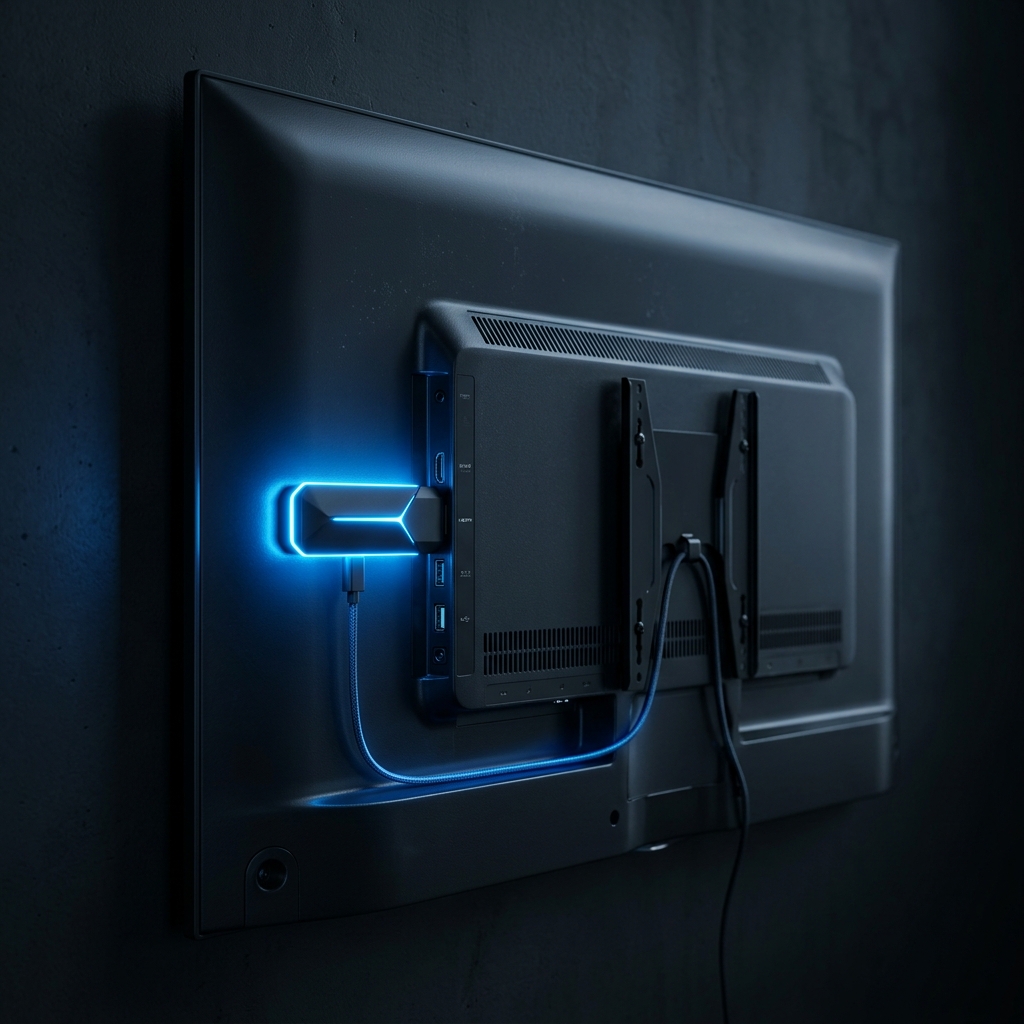
The Amazon Fire TV Stick has cemented itself as the most popular streaming device globally, and for excellent reason. It is cheap, astonishingly fast (especially the 4K Max version), and supports "sideloading," which allows you to install custom third-party applications not found in the official Amazon App Store. This is precisely what makes the Firestick the perfect companion for cutting the cord and diving into premium streaming. Whether you have just purchased the best IPTV service in 2026 or are just testing the waters, downloading the right viewing application is crucial. In this guide by Zyminex, we will walk you through the entire process of preparing your Amazon Firestick, downloading the universally acclaimed Downloader App, and successfully logging into your new premium Live TV account. You do not need to be a tech wizard to accomplish this—if you follow these steps precisely, you will be watching your favorite channels in under ten minutes.
1. Prepare Your Firestick (Enable Developer Options)
Before we can install any third-party streaming apps, we must give the Firestick permission to do so. Amazon hides this setting by default to protect beginners, but enabling it is highly safe and very simple.
- From the Firestick Home screen, navigate to the Settings (gear icon) on the far right.
- Click on My Fire TV.
- Click on About.
- Hover over the name of your device (e.g., "Fire TV Stick 4K") and click the OK/Select button on your remote 7 times rapidly. You will see a small message at the bottom saying "You are now a developer."
- Hit the back button once and you will now see Developer Options listed below "About". Click it, and turn ON Apps from Unknown Sources or Install Unknown Apps.
2. Install the 'Downloader' Application
To install IPTV apps like TiviMate or Smarters Pro, we need a browser/downloader application.
Go to the magnifying glass (Search) on your Firestick Home screen. Type "Downloader" and select the official app with the orange background. Click "Download" and then "Open". When it asks for permission to access photos, media, and files on your device—click Allow. This is strictly required for the app to save APK files.
3. Downloading Your Chosen IPTV Player
Now that you have the Downloader app open, you will see a URL bar in the center. Your premium service (Zyminex) likely provides you with a specific app or "Downloader Code". If they do not, we highly recommend installing standard apps like TiviMate or IPTV Smarters Pro.
Type the shortcode given to you by your provider (for example, entering a 5-digit code) and click "Go". The application file (APK) will automatically begin downloading. Once it completes, an installation prompt will appear automatically. Click Install. Once finished, click Done, and then select Delete to remove the setup file and save precious Firestick storage space.
4. Logging into Your Account via Xtream Codes
Regardless of the app you've installed, the login process usually relies on an "Xtream Codes API". This is a secure login method requiring three pieces of information, which should be located in your welcome email:
- Portal URL: (e.g., http://live.example.com:8080)
- Username: Your unique login username
- Password: Your unique password
Simply input these details carefully. Keep in mind that capital letters matter for your username and password. After clicking 'Add User' or 'Login', the app will briefly connect to the server to download the channel data. During this step, the application communicates with high-powered servers utilizing advanced anti-freeze IPTV technology to secure your buffer-free experience.
5. Next Steps: Securing Your Stream
Congratulations! Your Firestick is now an unstoppable entertainment hub. You can now freely browse all available channels and explore the vast VOD collections available on your subscription.
If you haven't yet purchased a premium plan, take action today. Take a moment to check our plans to ensure you have the most reliable, 4K capable, buffer-free connection in the industry before the next big sports event starts.
Frequently Asked Questions
What if the Downloader URL doesn't work?
Ensure you typed the code or URL exactly. Sometimes, ISPs block certain short links, so applying a VPN could instantly solve the issue.
Is sideloading apps illegal?
No. Sideloading (installing from unknown sources) is a standard Android feature and perfectly legal. What matters is ensuring you use legal, verified content streams.
Why are my channels buffering on my Firestick?
Firesticks require strong Wi-Fi. Ensure you are connected to the 5GHz Wi-Fi band. If it continues, clear the application cache in the Firestick settings.
Should I use TiviMate or Smarters Pro?
Smarters Pro is simpler and very beginner-friendly for VODs. TiviMate offers an unparalleled Live TV guide experience but requires a small premium upgrade fee for full features.
Can I install a VPN alongside my IPTV app?
Yes. You can download major VPNs directly from the official Amazon App Store. Always run your VPN before opening your Live TV app to ensure data encryption.
Written by the Zyminex Editorial Team
Dedicated to making complex streaming integrations simple for everyone.