How to Set Up Zyminex on Smarters Pro (Step-by-Step)
IPTV Smarters Pro is one of the most versatile streaming apps. Follow this guide to get it running on your favorite device.
Don't have a playlist yet?
What You Need Before Starting
- A compatible device (Android, iOS, Firestick, PC, Mac, or Smart TV).
- Your Zyminex subscription configuration email.
Step 1: Download Smarters Pro
Search for "IPTV Smarters Pro" or "Smarters Player Lite" in your device's app store. If you are on Amazon Firestick, you will need to sideload it using the Downloader app.
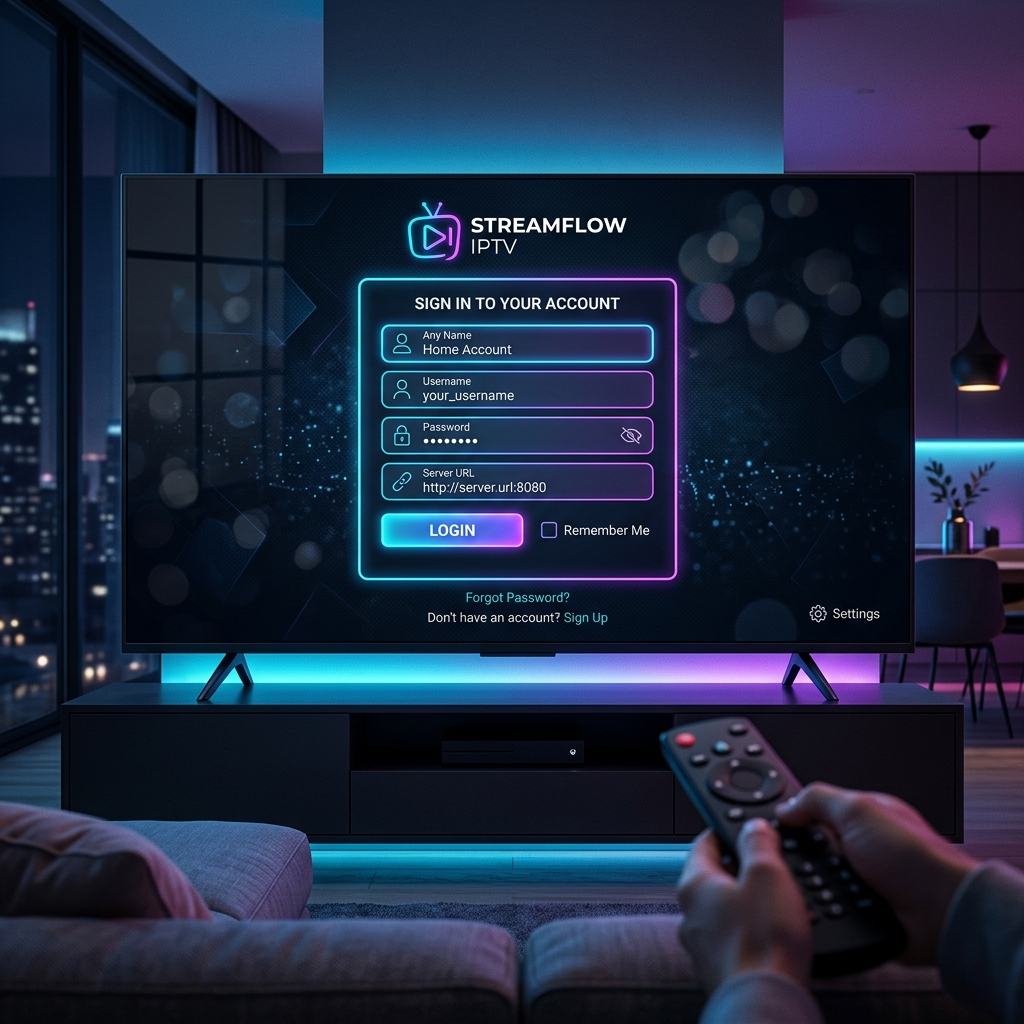
Step 2: Login via Xtream Codes
Open the app and accept the Terms of Service. Select "Login with Xtream Codes API" from the menu options.
Fill out the fields as follows:
Any Name: Zyminex
Username: (Found in your email)
Password: (Found in your email)
URL: (The server URL link provided)
Step 3: Add User and Load Content
Click "Add User". The app will connect to our servers and download the Live TV, Movies, and Series catalogs. It may take a minute on the first launch.
Troubleshooting
"Invalid Details" Error
Double-check your Username and Password. They are strictly case-sensitive. Ensure there are no spaces at the end of the server URL.
Blank Screen when Playing
Navigate to Settings inside Smarters Pro, go to Player Settings, and try toggling the "Hardware Decoder" on or off.
Ready to unlock 22,000+ channels on Smarters Pro?