How to Set Up Zyminex on TiviMate (Step-by-Step)
TiviMate offers the most premium, cable-like viewing experience. Follow this simple guide to deploy your streaming line.
Don't have a playlist yet?
What You Need Before Starting
- An Android TV Box, Nvidia Shield, or Amazon Firestick.
- Your Zyminex subscription email (containing your Server URL, Username, and Password).
- An active internet connection.
Step 1: Download and Install TiviMate
If you are on an Android TV device, search for "TiviMate IPTV Player" in the Google Play Store and click Install. If you are using a Firestick, open your Downloader app and enter the shortcode for TiviMate.
Step 2: Login via Xtream Codes API
Open the TiviMate app. Select "Add Playlist". From the options provided, choose "Xtream Codes login". This is highly recommended over M3U links.
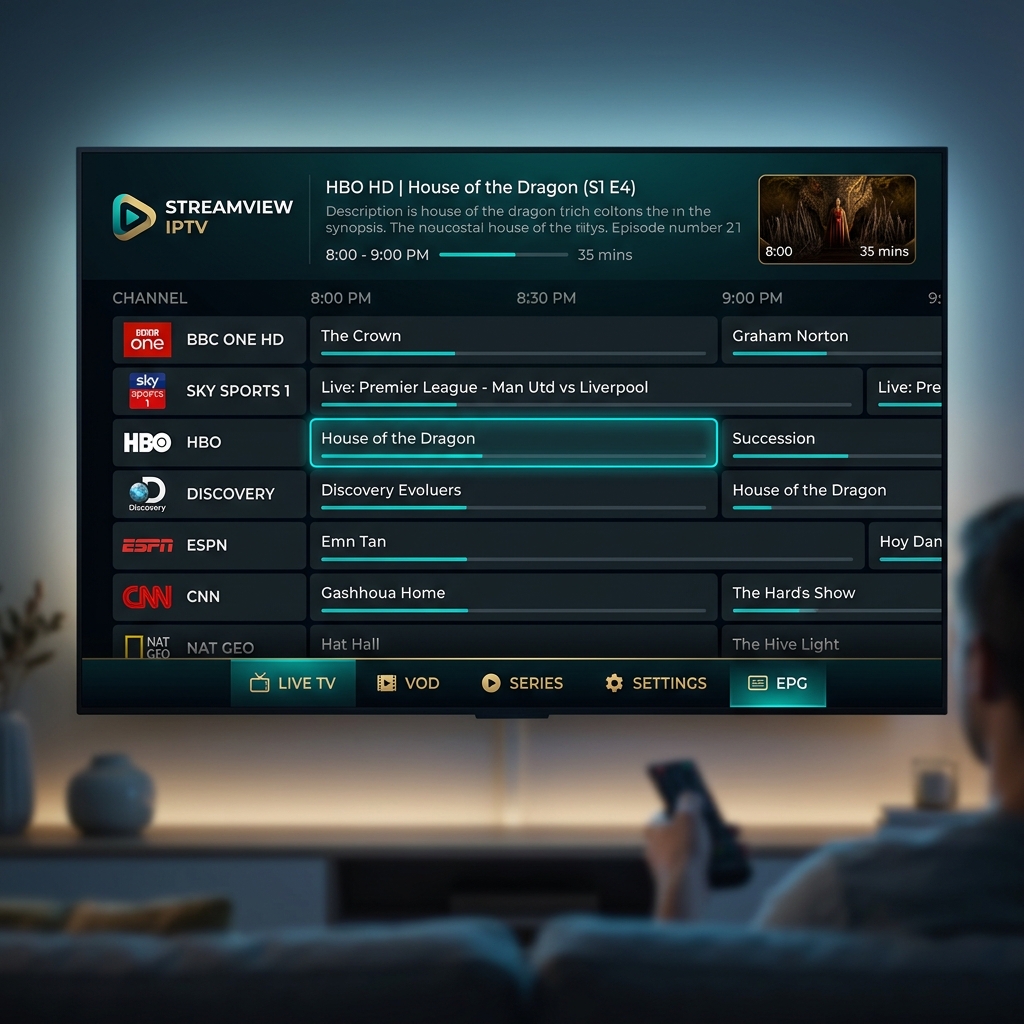
Enter the Server Address, Username, and Password exactly as they appear in your welcome email. Make sure "Include VOD" is enabled.
Step 3: Configuring the EPG (TV Guide)
Click "Next" or "Process". TiviMate will connect to the server, download the latest channel list, and import the Electronic Program Guide (EPG). Depending on your internet connection, this may take 1-3 minutes.
Troubleshooting Common TiviMate Issues
"Playlist Could Not Be Updated"
This usually means there is a typo in your server URL or credentials. Double-check for extra spaces.
No EPG Data
Navigate to Settings > EPG > Update EPG manually. If it still fails, contact support to reset your line.
Ready to unlock TiviMate's full potential?