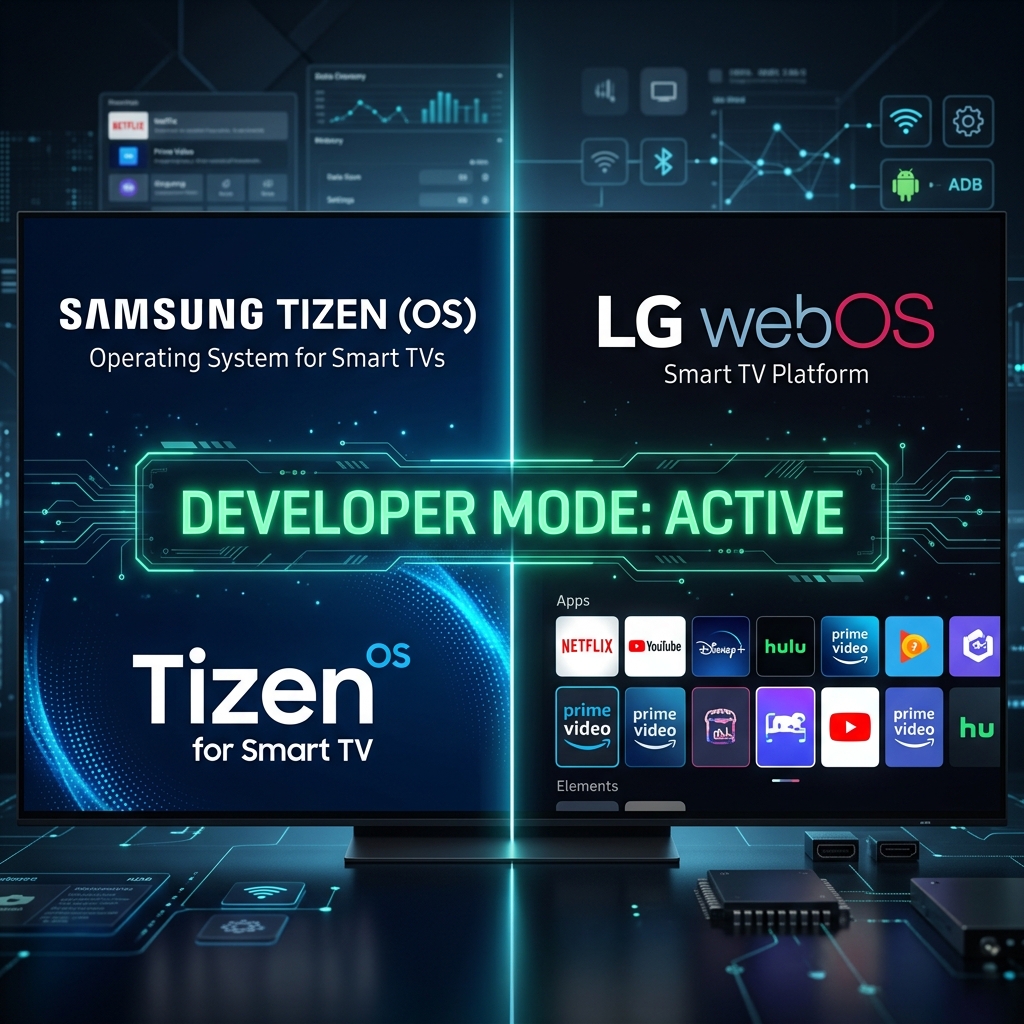
If your favorite IPTV player just vanished from your Samsung or LG app store, you aren't alone. In 2026, copyright pressures have led to a massive purge of streaming apps from Tizen and WebOS. But your hardware is still highly capable. In this guide, we’ll show you exactly how to bypass store restrictions using Developer Mode and USB sideloading to get IPTV on Smart TV 2026.
Why IPTV Apps are Vanishing in 2026
Over the past year, major copyright holders have placed immense legal pressure on television manufacturers. Consequently, Samsung's Tizen store and LG's WebOS Content Store have begun aggressively delisting third-party media players, categorizing them generically as "piracy risks" even though the apps themselves simply play user-provided links.
The days of simply searching the "Official" stores for LG WebOS IPTV players are mostly over. However, since these TVs are fundamentally just oversized computers, we can sideload Smart TV apps directly using developer tools designed for software creators.
Samsung Tizen: Restoring Access via Developer Mode
If you need to Install IPTV Smarters Samsung style, you will utilize Tizen's built-in Tizen Developer Mode. This method pushes the app from a computer directly to your television over your local Wi-Fi network.
The Secret Code
First, power on your Samsung TV and navigate to the Apps section. With the Apps screen open, take your remote and press the sequence 1 2 3 4 5. This hidden command prompts the Developer Mode popup to appear.
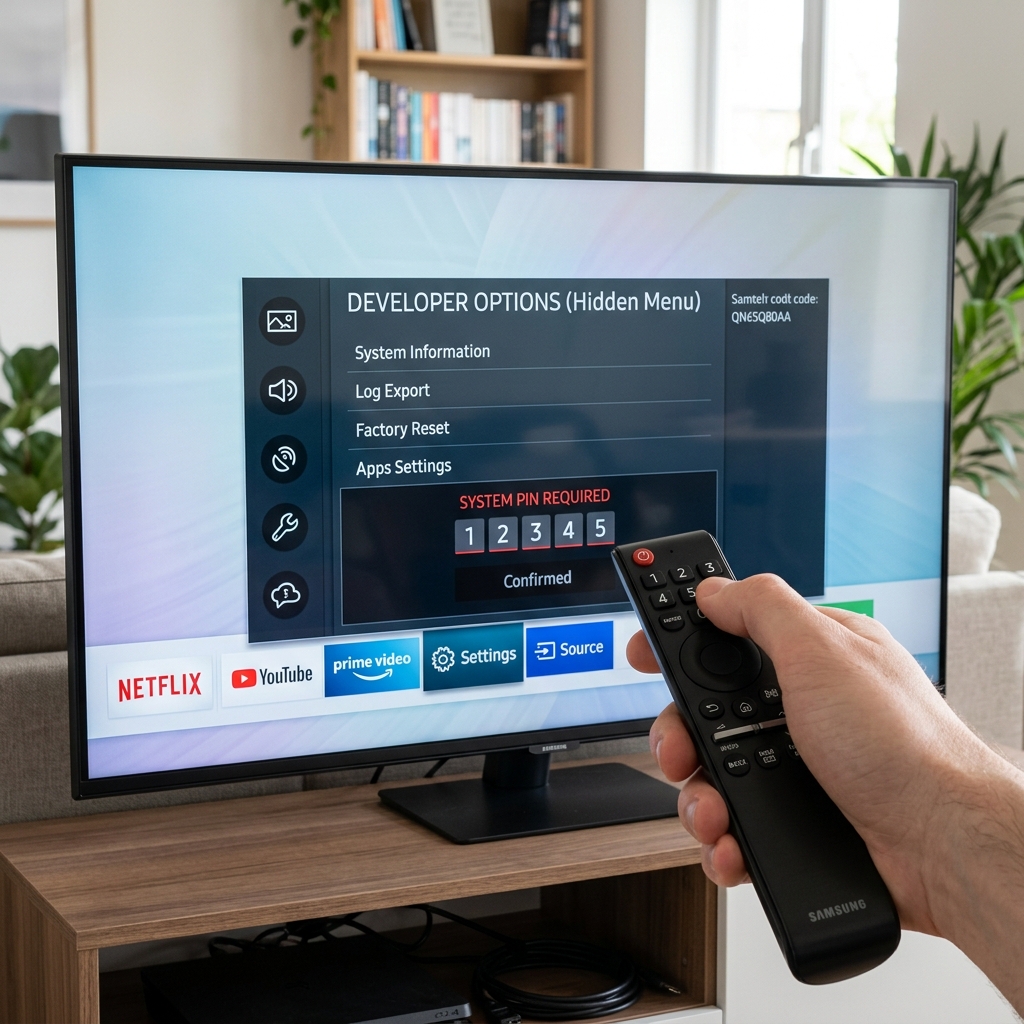
IP Configuration & Deployment
Toggle the Developer Mode to "ON". You will be asked for an IP address. Enter the local IPv4 address of your Host PC (the laptop or computer you'll use to send the app). Turn the TV off and back on to finalize the change.
Next, install Tizen Studio 6.0 on your PC. Download the required Tizen .wgt files for your chosen IPTV player. Use Tizen Studio’s Device Manager to connect to your TV’s IP address, then right-click the TV and select "Install App", choosing your downloaded WGT file.
LG WebOS: Using WebOS Dev Manager & Homebrew
For LG televisions, the process has been streamlined significantly thanks to the open-source community and the WebOS Dev Manager 2.4.
Developer Mode App
Search the official LG Content Store for an app simply called "Developer Mode" and install it. Open the app, log in with an LG Developer account (free to create online), and turn on "Dev Mode Status" and "Key Server".
Note: LG requires you to renew the "Developer Session" periodically. You will see a countdown timer in the app. If it expires, your sideloaded apps will be temporarily disabled until you renew it.
Sideloading IPK Files
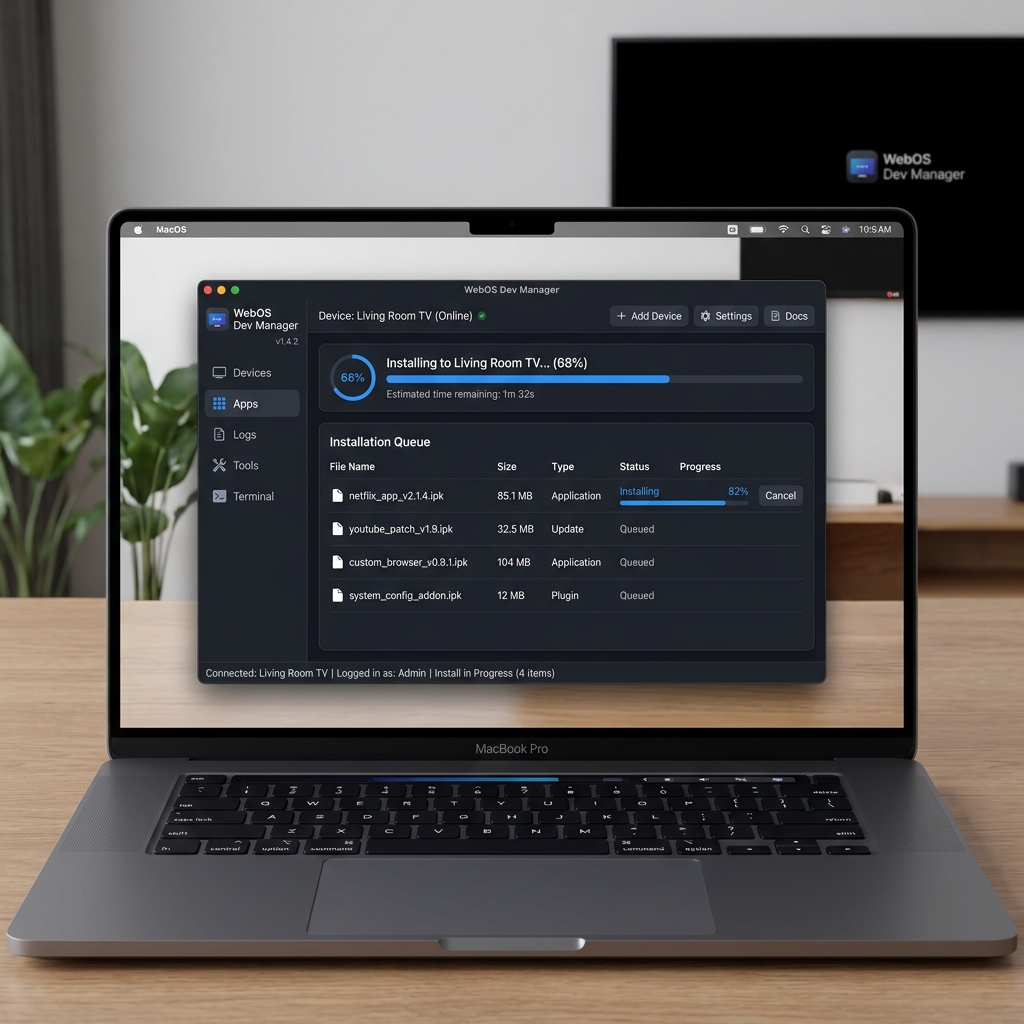
On your computer, download the WebOS Dev Manager. Open it and select "Add Device". Input the IP address and Passphrase shown on your TV's Developer Mode screen. Once connected, navigating IPK file installation is as simple as dragging and dropping the IPTV IPK file into the Dev Manager window.
The DNS Method: A "No-Install" Workaround
If developer tools feel too intimidating, you can use the DNS Redirection method. This trick involves changing your TV's network DNS settings to a specific server address provided by your IPTV service.
Once changed, when you open a completely unrelated app (like a specific weather app or the built-in web browser), the DNS intercepts the request and visually loads a fully functional IPTV interface instead. While not as permanent as the USB sideloading method or Dev Mode, it’s an incredibly fast fix if you find your Samsung TV IPTV app disappeared fix 2026.
Smart TV Installation Comparison Table
Here is a quick breakdown to help you choose the best IPTV on Smart TV 2026 installation route:
| Platform | Bypass Method | Difficulty | PC Required? |
|---|---|---|---|
| Samsung (Tizen) | Developer Mode / IP Sync | Medium | Yes |
| LG (WebOS) | WebOS Dev Manager | Medium/High | Yes |
| Both (Legacy) | DNS Redirection | Easy | No |
To decide which app to actually install, review our guide on the Top 5 Players to Sideload, which highlights the best smart TV IPTV player options currently available.
Frequently Asked Questions
Is sideloading apps on my Smart TV safe?
Yes, sideloading is safe as long as you download the installation files (IPK for LG, WGT for Samsung) from the official developer websites. Never install modified apps from unknown third-party forums.
Does Developer Mode void my Samsung warranty?
No. Developer Mode is a built-in feature designed for software creators to test their apps. Using it to sideload your own applications does not void the manufacturer's warranty.
What is the best IPTV player for LG TVs in 2026?
For LG WebOS in 2026, IPTV Smarters Pro and Bay IPTV remain the most stable choices when sideloaded, offering excellent compatibility with Zyminex servers and handling large channel lists without memory crashes. See our Smarters-specific configuration for details.
Don't let store bans limit your TV's potential. Once you've restored your app using our General Smart TV setup principles, ensure your stream is lag-free with a premium provider.