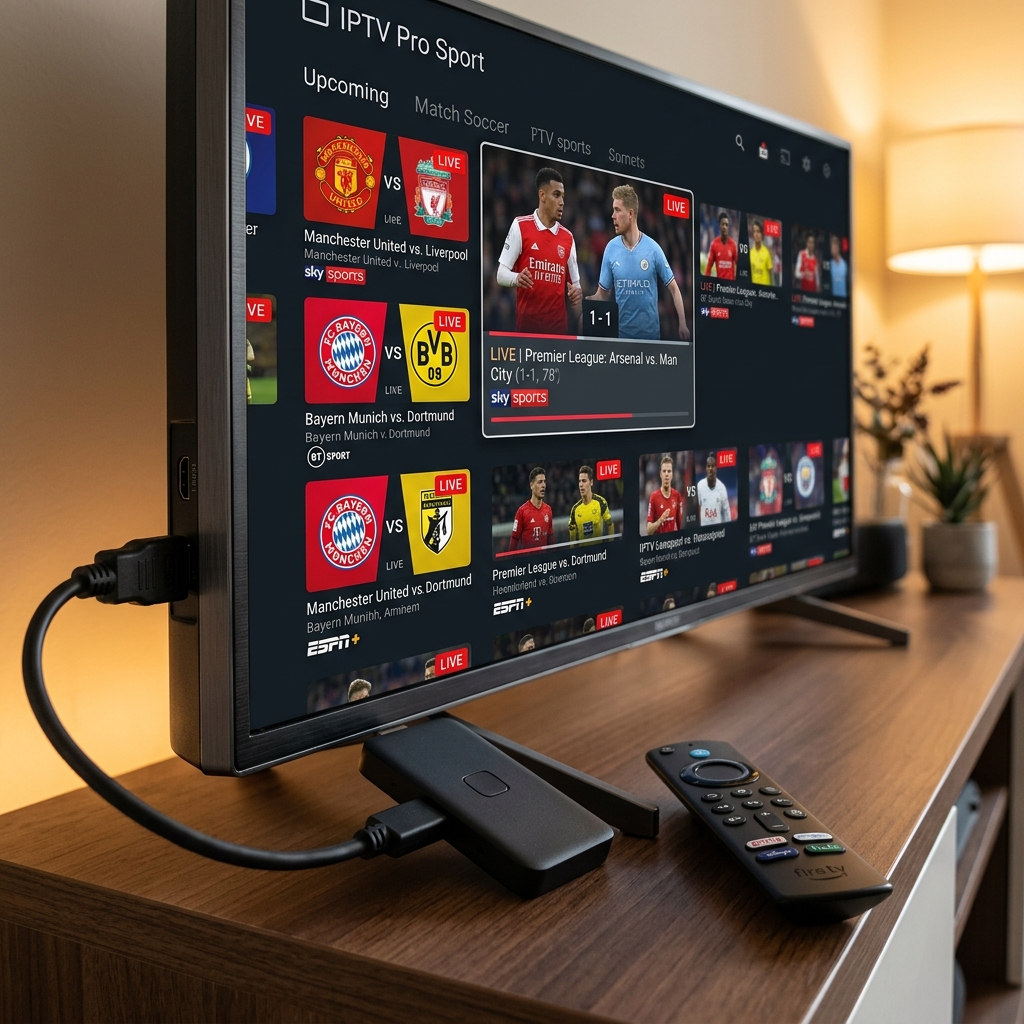
Learning how to setup Firestick for sports season kickoff before matchday arrives takes under 3 minutes when following the right steps. Whether you are dusting off an existing Fire TV Stick or setting up a new 4K Max model for August fixtures, clearing old app cache, enabling developer options, and loading a high-speed IPTV M3U line ensures zero buffering during 60fps live matches. With over 300 million Fire TV devices shipped globally and the 2026 Fire OS update speeding up core navigation by 20–30%, now is the time to optimise. Follow this quick 3-step guide to activate your sports streams instantly through Zyminex.
Step 1: Clear App Cache & Free Up Firestick RAM for 4K Streaming
If your Firestick has been sitting idle since last season, it's almost certainly clogged with stagnant app cache and background processes consuming precious RAM. This is the number one reason users experience crippling buffering during peak matchday traffic—the device simply doesn't have enough free memory to decode high-bitrate 4K live feeds in real-time. Before installing anything new, you need to clear Firestick app cache and reclaim system resources.
How to Clear Cache Without Losing Data
- Navigate to Settings > Applications > Manage Installed Applications on your Firestick home screen.
- Select each app individually (start with the largest ones—streaming apps, browsers, and old IPTV players accumulate the most cache).
- Tap "Clear Cache"—not "Clear Data." Clearing cache removes temporary files without deleting your logins, playlists, or saved preferences.
- Repeat for every installed app. On a typical Firestick that hasn't been cleaned in 6+ months, this alone frees 500MB–1.5GB of storage.
After clearing all app caches, perform a quick restart: hold the Select + Play/Pause buttons simultaneously for 5 seconds, or navigate to Settings > My Fire TV > Restart. This flushes background processes from RAM and ensures the latest Fire OS system updates take effect. The 2026 Fire OS update introduced significant memory management improvements—but they only activate after a clean restart.
⚡ Pro Tip: If your Firestick storage is critically low (under 500MB free), uninstall apps you no longer use. A lean device with 3–4 apps performs dramatically better than one loaded with 20+ unused apps competing for background resources during a live 4K Premier League stream.
Step 2: Unlock Developer Options & Install Top Firestick Apps in 60 Seconds
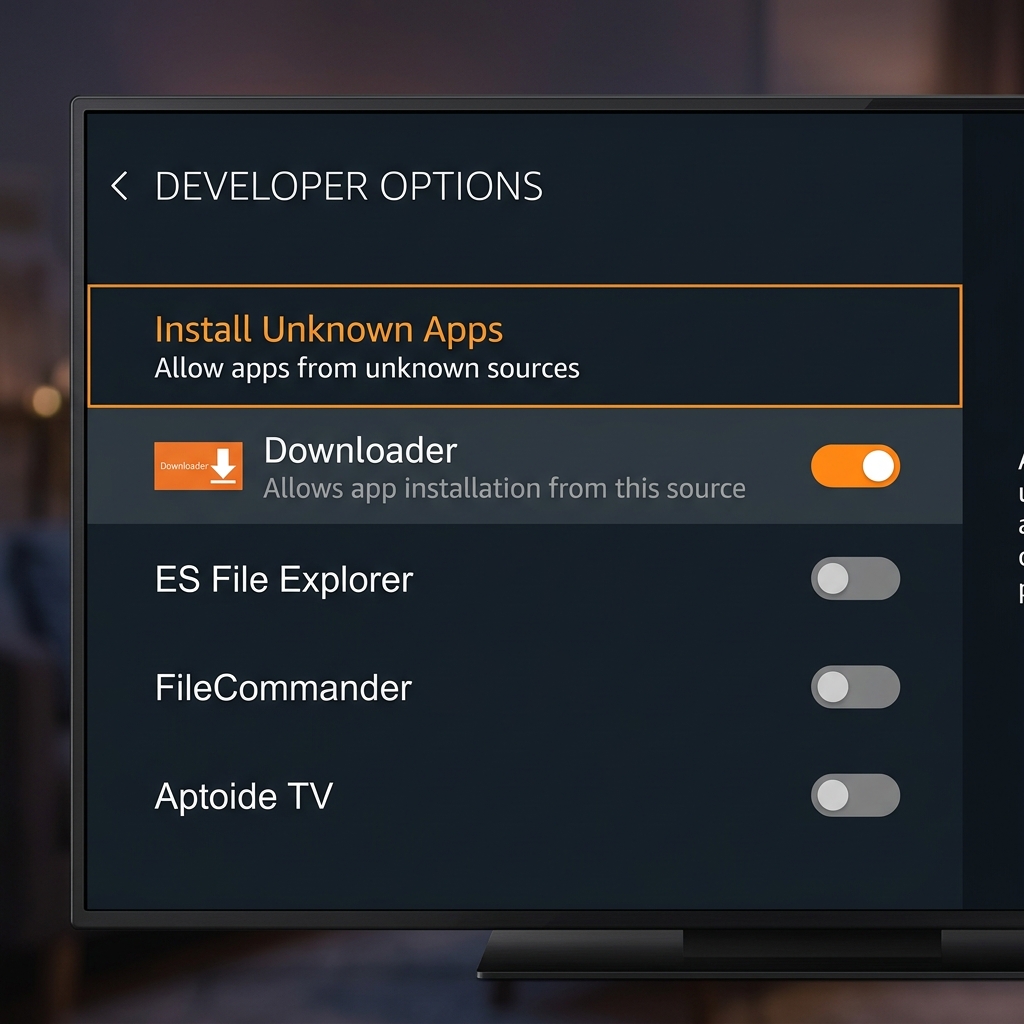
The best IPTV players—TiviMate, IPTV Smarters Pro—aren't available on the Amazon App Store. To install them, you need to unlock Firestick Developer Options and sideload APK files using the Downloader app. The 2026 Fire OS security update changed how Developer Options are accessed, so follow these exact steps even if you've done this before on an older firmware.
Reveal Developer Options (Fire OS 2026)
- Go to Settings > My Fire TV > About.
- Click on your device name (e.g., "Fire TV Stick 4K Max") exactly 7 times in rapid succession. A toast message will confirm: "You are now a developer!"
- Navigate back to Settings > My Fire TV. A new "Developer Options" menu item will now be visible.
- Inside Developer Options, toggle "Install Unknown Apps" and enable it for the Downloader app (install Downloader from the Amazon App Store first if you haven't already).
Install TiviMate or Smarters Pro via Downloader
Open Downloader and enter the official APK download URL for your preferred player. For a full visual walkthrough of the Downloader sideloading process, see our Downloader app Firestick tutorial. Once the APK downloads, tap Install, then Open. The entire process—from typing the URL to launching the app—takes about 60 seconds.
If you prefer TiviMate as your player (we recommend it for sports), our step-by-step TiviMate setup tutorial walks you through the full configuration including EPG loading, catch-up activation, and multi-view setup. These are the top Firestick apps August 2026 that every serious sports viewer should have installed before kickoff weekend.
Step 3: Activate Premium IPTV M3U Lines & Xtream Credentials
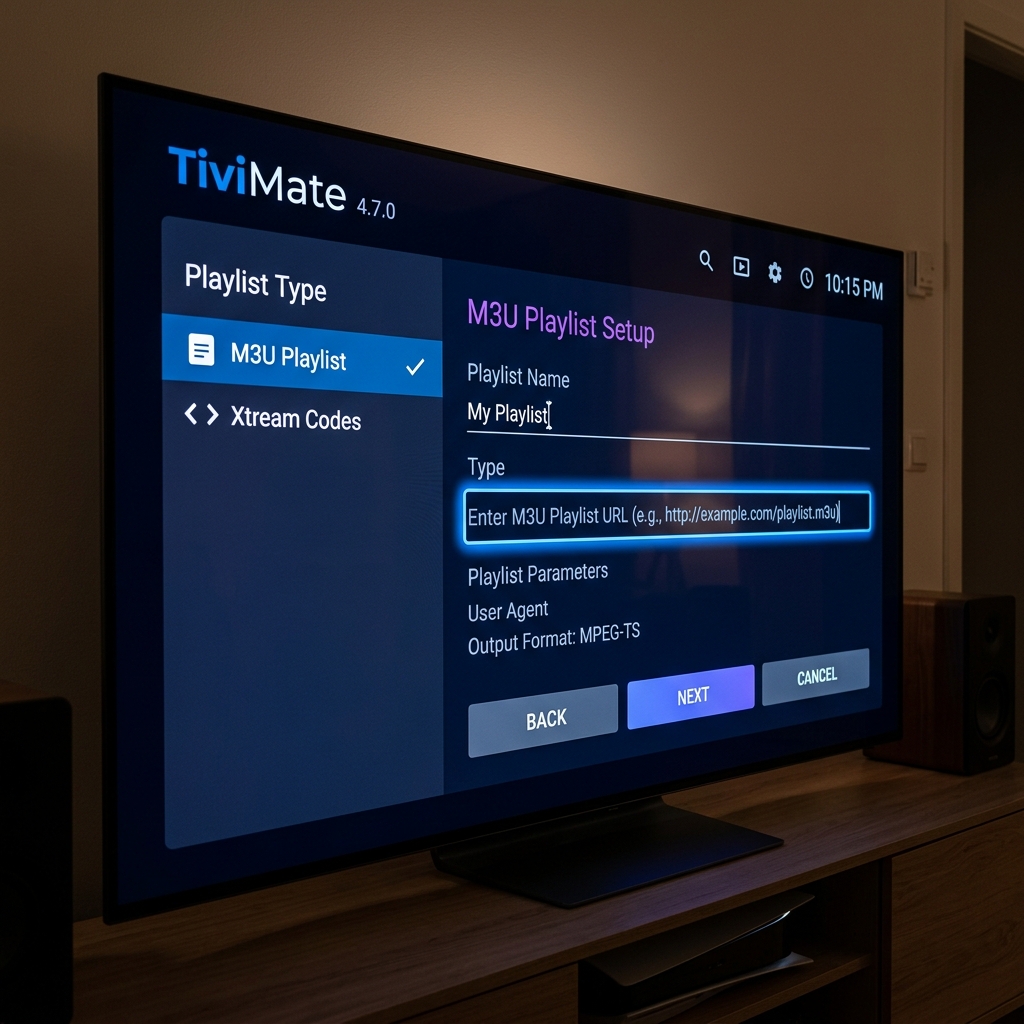
Your Firestick is clean, Developer Options are unlocked, and TiviMate is installed. Now comes the critical step: loading an active, high-speed M3U playlist or Xtream Codes login that actually delivers buffer-free 4K sports. This is where cheap, unreliable providers fall apart—and where a premium anti-freeze sports server M3U line from Zyminex makes the difference.
How to Load Your M3U / Xtream Codes Into TiviMate
- Open TiviMate and navigate to Settings > Playlists > Add Playlist.
- Choose "M3U Playlist" or "Xtream Codes" depending on your provider's credential format.
- Paste your M3U URL (or enter your Xtream server address, username, and password). Zyminex sends all credentials instantly to your email upon subscription.
- Tap "Next" and wait for the channel list to load. With Zyminex, this typically takes 5–10 seconds for 18,000+ channels including all major sports networks.
- Your EPG (Electronic Programme Guide) loads automatically. Navigate to the Sports category and you're live.
To understand the server technology that prevents freezing during 60fps Premier League and NFL streams, read our anti-freeze streaming technology guide. Zyminex uses dynamic CDN load-balancing across global edge nodes, meaning your stream automatically routes to the fastest available server—even during concurrent matchday peaks with millions of viewers.
What You Get With a Zyminex Sports Line
- 18,000+ Live Channels including Sky Sports, BT Sport, ESPN, beIN Sports, DAZN, and every Premier League, La Liga, Serie A, NFL, NBA, and UFC feed.
- 4K & 60fps Sports Feeds with HEVC/H.265 encoding for crystal-clear action at minimal bandwidth.
- 48-Hour Catch-Up on all major sports channels—miss a match while travelling, and replay it in full within 48 hours directly from the EPG.
- Anti-Freeze Server Architecture with automatic failover and CDN edge caching to eliminate buffering during peak traffic.
- Instant M3U Delivery—credentials are emailed within 60 seconds of purchase. No waiting, no manual activation.
Firestick Sports Setup Checklist: 3-Minute Quick Reference Table
Use this quick-reference checklist to setup Firestick for sports season in under three minutes. Each step is timed so you can verify you're on track—total elapsed time from start to first live sports stream is approximately 180 seconds.
| Step | Time Required | Action | Buffer Prevention Benefit |
|---|---|---|---|
| 1. RAM & Cache Refresh | 45 sec | Clear cache on all apps + restart device | Frees 500MB–1.5GB RAM for 4K decode |
| 2. Enable Developer Options | 15 sec | Click device name 7× under About, enable Unknown Apps | Unlocks sideloading for optimised IPTV players |
| 3. Install App via Downloader | 60 sec | Download & install TiviMate or Smarters Pro APK | Hardware decoder + EPG catch-up support |
| 4. Load M3U / Xtream Line | 60 sec | Paste M3U URL or Xtream credentials into player | Anti-freeze CDN routes to fastest server node |
Total time: ~3 minutes. For a more detailed, visual walkthrough of the full Firestick sideloading and IPTV configuration process, see our complete Firestick IPTV installation guide which covers every menu screen with step-by-step screenshots.
How to Prevent 4K Sports Buffering During Peak August Kickoffs
Even with a perfectly configured Firestick, external factors can cause buffering during the busiest streaming weekends of the year. Opening-weekend Premier League fixtures, NFL Week 1, and Champions League qualifiers all create massive concurrent viewer spikes. Here's how to prepare for the worst and ensure your streams remain fluid.
ISP Throttling: The Hidden Matchday Enemy
Your Internet Service Provider can detect high-bandwidth IPTV traffic and deliberately slow your connection during peak events. If your stream works perfectly on Tuesday afternoon but buffers violently during Saturday 3PM kickoffs, ISP throttling is almost certainly the cause. The solution: run a reputable VPN on your Firestick or at the router level. A VPN encrypts all traffic, preventing your ISP from identifying and throttling IPTV streams. This is how to prepare Firestick for football season 2026 when your ISP plays dirty.
Optimise TiviMate Player Settings
Inside TiviMate, navigate to Settings > Player and adjust these critical parameters for the best firestick iptv setup for sports replays and live matches:
- Video Decoder: Set to Hardware (not Software). Hardware decoding offloads video processing to the Firestick's dedicated chip, dramatically reducing CPU load and preventing frame drops during 60fps sports action.
- Buffer Size: Set to Medium (3–5 seconds). This forces the app to pre-load a few seconds of video before playback begins, smoothing out minor network fluctuations without introducing noticeable delay.
- Audio Decoder: Set to Hardware for the same performance benefits. Software audio decoding on lower-end Firestick models can cause audio-video sync issues during fast-paced commentary.
- EPG Update Interval: Set to 24 hours. More frequent EPG refreshes consume bandwidth and processing power unnecessarily. A daily update is sufficient to keep programme listings current.
🔌 Wired Connection Tip: If possible, connect an Ethernet adapter to your Firestick instead of relying on Wi-Fi. A wired connection eliminates packet loss caused by walls, microwave interference, and congested neighbourhood frequencies—the single biggest hardware upgrade for live sports streaming stability.
Frequently Asked Questions
Why won't my Firestick install IPTV apps from Downloader?
The most common cause is that Developer Options have not been unlocked or "Install Unknown Apps" has not been enabled for the Downloader app specifically. On Fire OS 2026, navigate to Settings > My Fire TV > About, then click the device name 7 times to reveal Developer Options. Next, go to Settings > My Fire TV > Developer Options > Install Unknown Apps and toggle ON for Downloader. If Downloader still won't install APKs, try clearing Downloader's own cache via the Manage Applications menu, then restart your Firestick and try again.
How do I stop my IPTV sports stream from buffering on Firestick?
Start by clearing cached data from all streaming apps via Settings > Applications > Manage Installed Applications, then restart the device. Use a wired Ethernet adapter instead of Wi-Fi for stable bandwidth. In TiviMate, switch the video decoder to Hardware and set the buffer size to Medium (3–5 seconds). If buffering persists during peak events, enable a VPN to bypass ISP throttling—your ISP may be deliberately slowing IPTV traffic during major matchdays. Finally, ensure you're using a provider with anti-freeze server technology that auto-routes to the fastest available CDN node.
Can I use an M3U playlist link on TiviMate for live 4K sports?
Yes, TiviMate fully supports both M3U playlist URLs and Xtream Codes login credentials. Open TiviMate, go to Settings > Playlists > Add Playlist, select M3U Playlist, and paste your provider's M3U URL. For 4K sports playback, ensure your Firestick model supports HEVC/H.265 decoding (Fire TV Stick 4K or 4K Max) and that your provider offers dedicated 4K sports channels. Zyminex includes 4K 60fps sports feeds with best IPTV subscription links in all plans—setup TiviMate quickly by following the steps in this guide.
Your Firestick Is Ready — Now Activate Your Sports Line
That's all it takes to setup Firestick for sports season 2026/27: clear the cache, unlock Developer Options, install your preferred player, and load a high-performance M3U line. Total elapsed time: under 3 minutes. Your Firestick is now optimised to handle 4K 60fps live sports without a single buffer, even during the most congested opening-weekend matchday traffic.
Don't wait until the referee's whistle to discover your setup isn't working. Activate a 24-hour IPTV free trial now and test every sports channel at full quality before committing—or go straight to our subscription plans and secure your anti-freeze M3U credentials instantly. The 2026/27 season starts this weekend. Be ready.
Written by the Zyminex Tech Team
Our device setup specialists help thousands of Firestick users get sports-ready every season.
Season Starts This Weekend
Grab your anti-freeze M3U credentials now. Instant email delivery, 18,000+ channels, 4K 60fps sports.