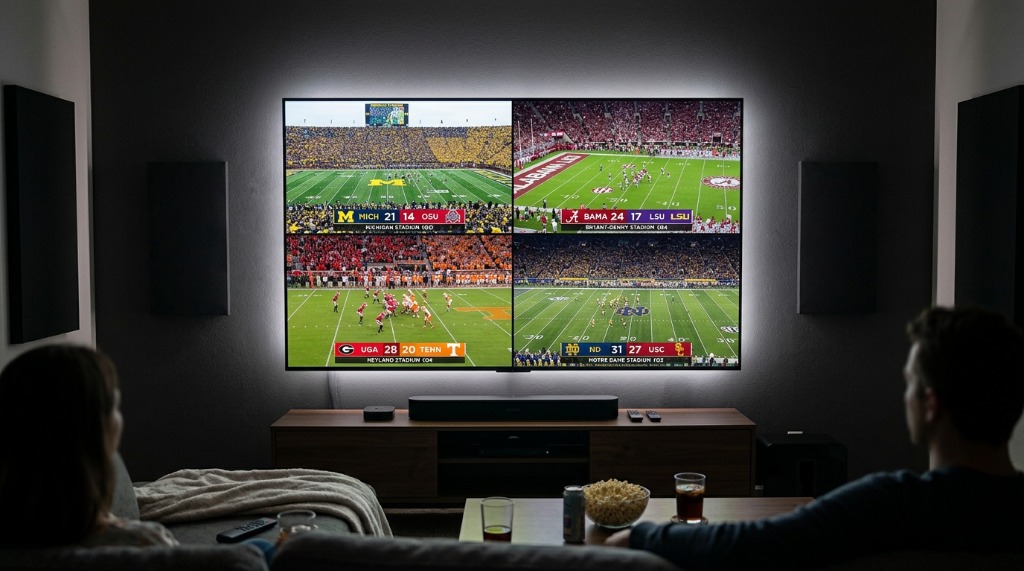
Saturdays in September are meant for one thing: watching multiple College Football games at once. The ultimate TiviMate multi-screen sports setup allows you to track top 25 matchups, upsets, and rivalry games simultaneously. However, while TiviMate's Multi-View feature is undeniably the best tool for the job, doing it wrong by combining it with a cheap, single-connection IPTV provider will quickly lead to buffering or getting your IP address permanently banned. Let’s explore how to configure the perfect 4-way setup safely, utilizing a premium service like Zyminex (where our 12-Month plan drops down to just ~€5/mo).
Why You Need TiviMate Multi-View for CFB Saturdays
College football is pure chaos. Between high-scoring shootouts, unpredictable overtimes, and simultaneous noon kickoffs, keeping up with the action using a standard single-screen setup is frustrating. Flipping back and forth between channels means you are guaranteed to miss the biggest plays of the day. This is exactly where the TiviMate Multi-View feature shines, solving the multi-game tracking problem natively right on your Android TV or Firestick device. It transforms your living room into a Las Vegas sports book or a professional sports bar.
What sets TiviMate apart from other players on the market is its incredible implementation of "Hot Audio Switching." When you have multiple streams running in a 2x2 grid, you can quickly move your D-Pad to a different screen cell, and the audio switches to that specific game in under 50 milliseconds. There is no lag, no reloading of the stream, and no audio overlap. If you are learning how to stream college football without cable, this feature alone is worth standardizing on TiviMate. In any TiviMate vs IPTV Smarters Pro comparison, Multi-View and audio switching capabilities put TiviMate miles ahead.
The Catch: Why Cheap Providers Ban You for Multi-Screen
Here is the harsh technical reality that many new cord-cutters fail to understand: displaying 4 screens simultaneously in a 2x2 grid equals 4 simultaneous server connections pulling bandwidth at the exact same time. TiviMate isn't magically splitting one stream into four; it is actively logging into your provider's server four separate times to fetch four distinct video feeds.
If you try to run multiple streams using a cheap, $5-a-month 1-connection service, their automated firewall systems will detect that your username is pulling four feeds when you only paid for one. Best case scenario? You will experience endless buffering as the server aggressively drops your extra connections. Worst case scenario? Your account will be permanently banned for terms of service violations and abuse, leaving you with no TV right before kickoff.
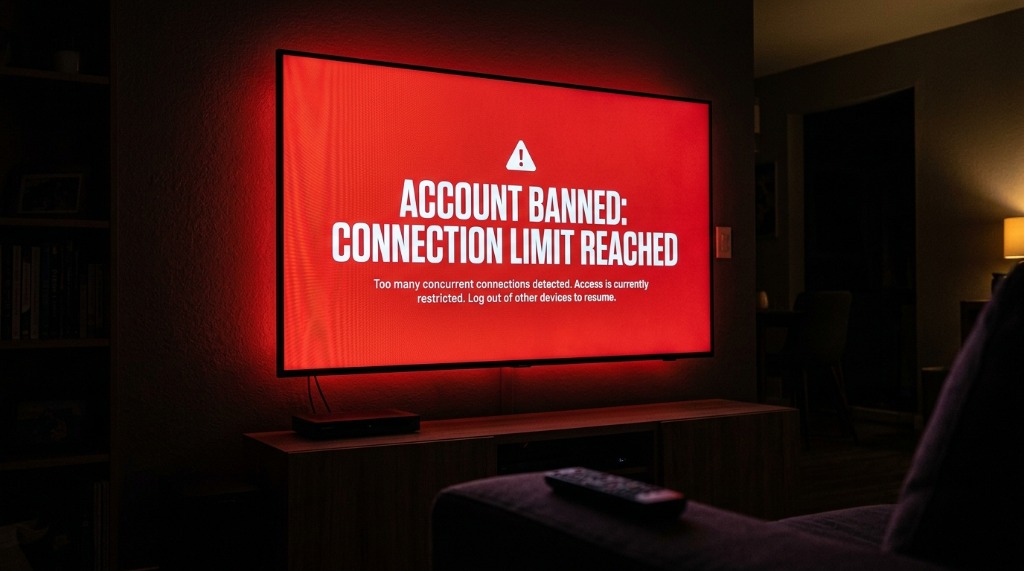
To achieve the best IPTV for TiviMate multi-view, you absolutely must upgrade to a provider that supports the bandwidth natively. The Zyminex 4-connection package is the ultimate, safe, premium solution for this exact setup. Whether you grab the Zyminex 6-Month plan at €44.99 (~€7.50/mo) or the 12-Month plan at €59.99 (~€5/mo), every single tier includes 4 simultaneous connections standard. Check out our multi-connection IPTV guide for more insights on how sharing connections works, and read up on our anti-freeze technology to see how we maintain stable 4K delivery across multiple feeds.
🚨 Important Warning: Never attempt to run a 4-way multi-screen setup on a basic 1-connection subscription. Our 4 connections IPTV credentials are specifically designed to safely bypass server limit bans so you can upgrade to our 4-connection package with total peace of mind.
Step-by-Step: How to Set Up TiviMate Multi-Screen
Wondering how to watch 4 college football games at once? Assuming you have our 4-connection package and a premium unlock of the app, here are the exact remote instructions to get your Android TV split screen running:
- Open TiviMate and start playing any live sports channel.
- Press the Options button (the three-dot menu icon, or long-press OK/Select on your remote).
- Scroll down and select "Multi-View" from the bottom menu overlay.
- Choose your layout style: you can pick 2-screen side-by-side, a 2x2 grid (4 screens), or 3+1 picture-in-picture.
- Navigate to each empty cell with your D-Pad and press OK to assign a new channel to that specific square.
- Use the D-Pad arrows to switch focus and audio between the screens instantaneously.
Pro-Tip: You can assign a dedicated shortcut button on your remote specifically for Multi-View. Go to Settings > Remote Control > Player, and assign an unused button (like long-press UP) to toggle Multi-View instantly. If you haven't set up the app yet, make sure to install TiviMate Premium by following our detailed instructions, or check out our other setup guides.
Recommended Hardware for a Smooth 4-Screen Experience
Running a 4-way TiviMate multi-screen sports setup is incredibly resource-intensive. Remember, the app is pulling distinct 1080p or 4K bitrates, processing four individual video decodes simultaneously, and outputting them seamlessly to your TV. Lower-end hardware with limited RAM (1GB or less) simply cannot handle the load and will often crash completely when trying to run a full 2x2 grid. Additionally, to enable this feature at all, a TiviMate Premium subscription requirement is mandatory.
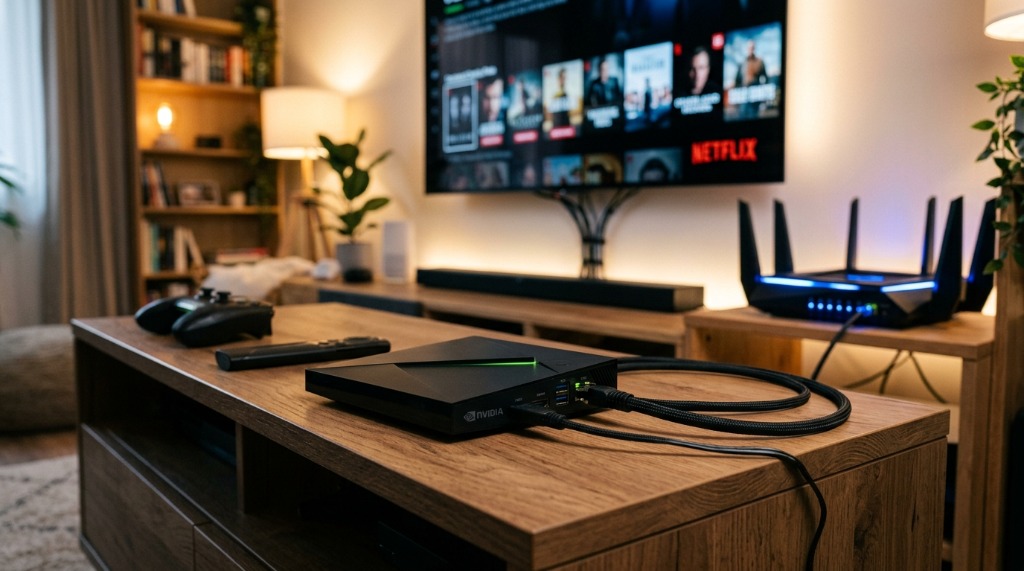
For a buffer-free day of College Football and a reliable cheap NFL Sunday Ticket alternative, you need robust processing power and preferably a hardwired Ethernet connection. If you're using Amazon devices, follow our Firestick setup guide for optimization tips. Here is how popular devices stack up:
| Device | RAM | Max Stable Screens | Ethernet Port? |
|---|---|---|---|
| Nvidia Shield TV Pro | 3GB | 4+ (Smooth) | Yes (Built-in) |
| Fire TV Stick 4K Max | 2GB | 2-4 (May stutter) | No (Needs Adapter) |
| Standard Android TV | 1GB | 1-2 | Usually No |
Frequently Asked Questions
How many connections do I need for TiviMate Multi-view?
You need one connection per screen. For the popular 2x2 grid layout, you need exactly 4 simultaneous connections from your IPTV provider. Zyminex includes 4 connections on all plans.
Why is TiviMate Multi-view buffering or crashing?
Two common causes: insufficient hardware RAM (need 2GB+ for 4 screens) and your IPTV provider throttling or not supporting enough simultaneous connections. Upgrade to a device like the Nvidia Shield Pro and ensure your provider supports 4 connections.
How do I switch audio in TiviMate Multi-screen?
TiviMate uses "Hot Audio Switching." Simply move your D-Pad to focus on a different screen cell, and the audio switches in under 50 milliseconds with no delay or interruption.
Your 4-Screen College Football Command Center Awaits
Setting up the ultimate TiviMate multi-screen sports setup doesn't have to be complicated, but it does require the right foundation. When you pair high-performance hardware like the Nvidia Shield Pro with a premium, robust provider that explicitly offers 4 connections IPTV, you unlock a seamless sports viewing experience. Avoid the ban hammers from cheap services and step up to a platform that lets youwatch live sports without buffering.
Ready to completely revolutionize your College Football Saturdays? Grab our Zyminex 3-Month plan for €29.99 (~€10/mo) or lock in the best value with our 12-Month plan for €59.99 (~€5/mo). We even offer a 24-hour free trial so you can test the 4-way Multi-View yourself before committing.
Written by the Zyminex Editorial Team
IPTV power users and cord-cutting experts helping you get the most out of your streaming setup.
Ready for Multi-View?
Grab your 4-connection anti-freeze credentials now. Instant email delivery, 20,000+ channels, 4K 60fps sports.